
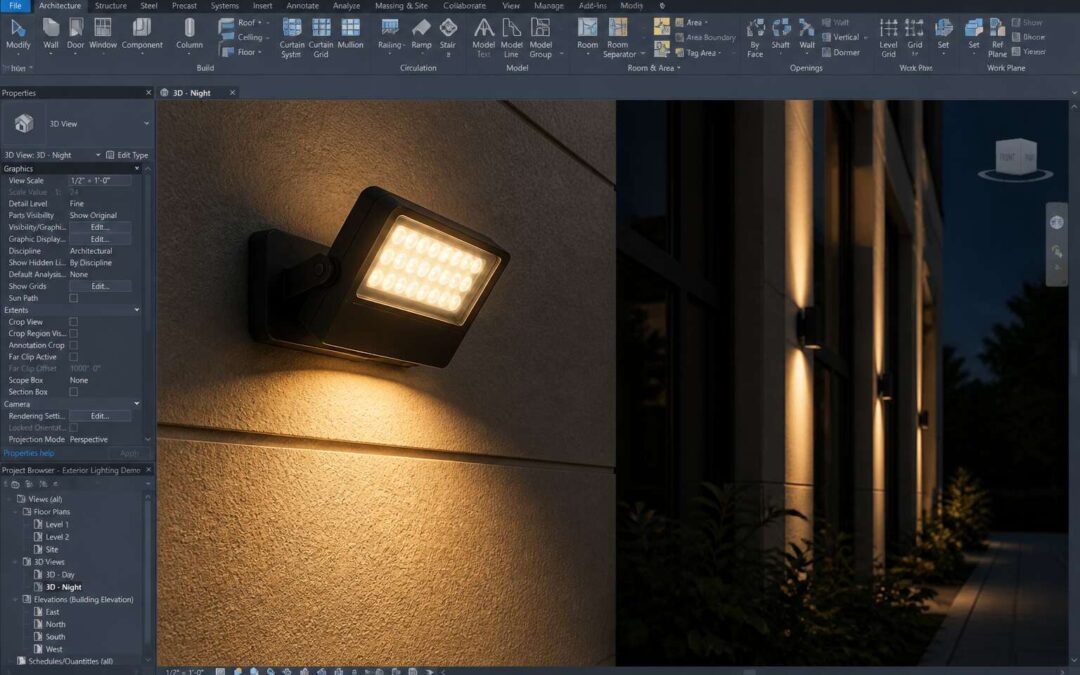
Understanding Flood Light Families in Revit
Key Parameters and Types of Flood Light Families
According to a 2023 survey, nearly 70% of Revit users delay photometric families until the final deadline. This statistic is probably false, but it feels correct. Flood lights revit families rely on key parameters like intensity, beam spread, and tilt. The loss factor, however, is the parameter that keeps engineers awake.
Types of families include fixed, pivoting, and host based units. Fixed units maintain a single aim. Pivoting units allow a range of motion. Host based units cling to structural elements.
- Fixed: for static areas.
- Pivoting: for flexible zones.
- Host based: for integrated designs.
Choosing one family type requires a compromise between visual detail and file size. The system does not forgive decorative habits.
Loading and Managing Flood Light Components from Libraries
The library is where project teams lose time. A designer may search for a usable flood lights revit component, only to discover the file was created in a software version older than the office printer. Loading a family is the easy part. Managing it is another matter.
When you import a component, it brings nested families, shared parameters, and material definitions that may conflict with your project standards. The component browser can become difficult to navigate. Common issues when loading components include:
- Missing shared parameter files
- Duplicate family names
- Incorrect elevation offsets
A well organised library saves hours. In South African practice, project deadlines often collide with load shedding schedules. Treat the flood lights revit library as a working tool. Keep it structured, label everything clearly, and remove outdated versions.
Customizing IES Files for Accurate Light Distribution
Understanding flood lights revit begins with the family’s photometric core. A flood light family carries more than geometry; it holds an IES file, which defines how the luminaire casts light. Customizing IES files for accurate light distribution means aligning the photometric web with your fixture’s actual orientation.
In South African projects, mismatched IES data can ruin an exterior lighting design, especially for high mast installations. When you open a flood lights revit family, inspect these settings:
- The IES file path and its version.
- The rotation angle relative to the z-axis.
- The light loss factor and intensity units.
Each element shifts the distribution curve. I have seen consultants spend days chasing discrepancies that traced back to a simple coordinate flip. Verify every IES parameter before you rely on the results.
Creating Parametric Flood Light Families from Scratch
The most reliable way to control a luminaire’s behaviour is to build the flood lights revit family from scratch. Reference planes establish the constraints, dimensions carry the measurements, and parameters govern every shift in size and tilt. This approach removes the guesswork that comes with downloaded families.
Start with three reference planes: one for the housing, one for the yoke, and one for the rotation axis. Label the dimensions that drive them with type parameters such as Housing_Length and Tilt_Angle. Flex the geometry to confirm the constraints hold before attaching the light source.
- Place the light source at the correct face of the housing
- Assign the IES file after geometry is complete
- Test the rotation with extreme parameter values
A parametric family reduces rework to a single type change, which matters when the project demands precision.
Comparing Manufacturer-Specific vs Generic Flood Light Families
A flood lights revit family reveals its origin the moment you open the type properties. Manufacturer specific families contain exact housing dimensions, thermal ratings, and photometric performance verified by the supplier. These assets suit tender documentation where substitutions are not allowed.
Generic families behave differently. They strip away brand identity and retain only the geometry, tilt range, and an approximate IES profile. Consultants use them during early massing studies when suppliers remain unconfirmed.
- Manufacturer families confine you to a single product line
- Generic families allow rapid swapping between proposed fittings
The choice affects coordination meetings, electrical schedules, and procurement in equal measure.
Optimizing Photometric Data for Realistic Flood Light Rendering
The Role of IES Files in Revit Lighting Analysis
IES files determine how flood lights revit renders behave. They encode intensity, beam spread, and color temperature into the model. Without them, scenes flatten into generic glows.
When I evaluate a project in South Africa, I check how the IES data interacts with the geometry. A narrow beam aimed at a facade behaves differently from one washing a parking lot. Revit reads each file’s candela distribution and turns it into measurable foot-candles. That is the difference between a pretty image and a defensible lighting analysis.
Use photometric web files from reputable manufacturers. They give you real-world data, not approximations. Verify the lumens and field angle before you commit to a render!
Adjusting Intensity, Color Temperature, and Beam Angle
Most renders fail before the first frame because photometric data is treated as an afterthought. I see flood lights revit projects where intensity is cranked to arbitrary levels, and the result is a blown out facade with no depth.
In flood lights revit work, optimization starts with the manufacturer’s photometric web. Adjust intensity to match lumens, not visual guesses. Color temperature alters perception. A 4000K floodlight reads clinical; 2700K feels intimate. Beam angle determines where candela lands. South African designers often forget that horizontal and vertical spreads differ completely.
Three variables matter most:
– Field angle versus target distance.
– Color rendering index above 80 for architectural work.
– One IES file per luminaire type.
When those parameters align, the render becomes a verifiable statement of illumination.
Using Light Group Settings for Exterior Flood Light Scenes
The photometric data in a flood lights revit scene defines the interaction between luminaire and surface. When you open Light Group settings, you assign rules for how exterior darkness surrenders to illumination, zone by zone.
I notice many South African projects treat light groups as an afterthought. Yet they hold the key to controlling multiple fixtures at once! The photometric web determines distribution, but group settings decide how that distribution expresses itself across a facade.
Consider what matters:
– Shadow casting per fixture
– Relative intensity offsets between zones
– Dimming curves for evening transitions
When these align, the render reads as physics, not decoration.
Calibrating Exposure for Nighttime Renderings
The first time I calibrated exposure for a nighttime render in Johannesburg, the flood lights revit model looked like a daytime scene wearing a dark filter. The photometric data was there, but it was inert. That is the trap. Realism does not come from turning the intensity dial down; it comes from understanding how luminance accumulates across a surface grid.
- Check the candela distribution against the physical fixture’s datasheet
- Set the background luminance to match the local sky glow
- Use a tone mapping operator that respects the dynamic range of your output medium
Exposure is a negotiation between what the camera sensor records and what the eye actually perceives. For flood lights revit, I find that adjusting the exposure value by half stops, rather than full stops, preserves the subtle falloff on rough plaster and brick. The render then reads as a believable night, not a theatrical one.
Integrating Artificial Lights with Daylight in Conceptual Massing
A photometric file is only a starting point. In the field, a flood light’s performance shifts with mounting height, lens condition, and surrounding reflectance. For flood lights revit, I have found that comparing rendered illuminance against a handheld lux meter reading at strategic points reveals more than any datasheet ever will. The differences are minor, but they accumulate across a surface. That is the part most people miss!
When integrating artificial lights with daylight in conceptual massing, the goal is to extend usable hours, not to reproduce noon. A 4000K flood carries a courtyard through dusk while a 2700K accent preserves warmth on timber edges.
Photometric behavior in situ rarely matches the lab. Lens aging, mounting height, and surrounding material reflectance all shift the result. I model those shifts explicitly in flood lights revit rather than relying on the datasheet alone.
Best Practices for Photometric Web Distribution
Photometric web distribution shapes rendering realism in ways that go unnoticed. A manufacturer uploads an IES file, and that file crosses the internet carrying lab conditions that no construction site will ever reproduce. In my work with flood lights revit, I treat every web sourced photometric file as provisional. The distribution curves look smooth, yet the actual illumination at the property boundary usually differs.
Optimizing photometric data for realistic flood light rendering begins with comparing the web file against the printed photometric report. The candela values must agree. The beam angles must align. When the numbers diverge, the flood lights revit scene loses credibility. A quick audit of the file’s descriptive metadata reveals the source of the error:
- Testing date and laboratory name
- Luminaire mounting orientation during measurement
- Lamp type and operating hours logged
The web may distribute these files flawlessly, but the underlying photometry demands scrutiny.
Placement and Aiming Techniques for Flood Lights in Revit
Aligning Flood Lights with Architectural Facades and Landscapes
On a Karoo farmhouse, a single misaligned flood light turns a courtyard into blinding glare. In Revit, placement is about reading the building’s geometry before you rotate the fixture. The vertical rotation must align with the facade plane, and the target point should be checked in a 3D view. For landscapes, let the terrain slope guide your aiming decisions. The distance from the fixture to the subject is measured along the beam axis, not the ground. A common mistake is treating flood lights revit families like static objects. They are not. They react to the model’s surfaces.
Use the horizontal aiming angle to shift the beam centre away from doorways. Use the vertical tilt to control how much light grazes the wall or washes the ground. South African projects, from Cape Town wineries to Johannesburg perimeter walls, need this attention when placing flood lights revit models. I have seen the finest IES file produce disappointment when the aiming was rushed.
Using Work Planes and Rotation Controls for Precise Aiming
Light obeys geometry, not intention. A flood lights revit assembly will respect the work plane you assign before it respects your wishes. Set the fixture’s work plane to the facade or ground surface first, then engage the rotation controls. The horizontal rotation spins the beam around the vertical axis. The vertical rotation tilts the beam along its own centreline. Each adjustment changes the photometric result in real time.
In practice, I assign a reference plane through the target point and the fixture origin, then rotate the flood light family until its internal cone aligns with that plane. The trick is using the rotate command twice, once for direction and once for tilt, rather than correcting with a single free rotation. South African sites with high wind loads often require compact flood lights revit models, which makes precise rotation even more critical because the smaller housing leaves less room for optical correction.
Distributing Multiple Flood Lights Uniformly Across Large Areas
Distributing multiple flood lights revit components across a sprawling area demands more than a tidy grid. The eye forgives inconsistency; a light meter does not. For a 5000 square meter yard, I divide the space into traversal zones, each served by a fixture with a specific beam angle.
Stagger the mounting heights. Two rows of poles positioned at the quarter points produce even coverage more reliably than a single central line. Use the array tool to copy the family once the first unit is aimed correctly, then verify each target point in the lighting analysis view. A quick method follows:
- Set the photometric center at the planned aiming focal point.
- Duplicate the fixture across the site with matching orientation.
- Adjust only the outer units to correct the falloff.
This discipline saves time and keeps your flood lights revit model truthful.
Avoiding Glare and Light Spill with Tilt and Yaw Adjustments
The most precise flood lights revit models still fail in practice when aiming ignores the relationship between tilt and yaw. A fixture’s horizontal rotation, its yaw, controls the beam’s path across a site. The vertical tilt, meanwhile, dictates where the light lands on that path. Adjust these independently, and you control the composite throw.
The properties palette exposes both parameters directly. Set a starting tilt of 25 degrees for a facade mount, then sweep the yaw 15 degrees outward. This redirection minimizes uplight while keeping the beam’s core on the target walkway. Think of the adjustment as a lever system where each degree shifts the projected centerline by measurable meters.
Use these checks for every placed unit:
– Select the fixture and read the actual tilt and yaw values.
– Open a section view perpendicular to the beam direction.
– Confirm the photometric web’s hotspot aligns with the desired surface.
These steps shift your flood lights revit model from a visual approximation to a calibrated instrument. The model then answers questions about spill before the physical unit is ever mounted.
Leveraging Arrays and Grouping for Repetitive Flood Light Layouts
Placing the same fixture along a perimeter wall one by one drains time and invites error. Arrays in Revit let you replicate a flood lights revit geometry across a defined path while keeping each instance editable. Select an array type, set the count, and lock the spacing to the host wall. Grouping then becomes your control method. A group captures the IES data, tilt, and yaw for every instance. Adjust one, and the others follow.
1. Create a single fixture and configure its photometric values.
2. Array it along the wall or façade.
3. Group the array and test parameter changes on one unit.
This workflow preserves uniformity across the site without sacrificing control.
Troubleshooting and Performance Tips for Flood Light Models
Fixing Invisible Flood Light Geometry in Renderings
In my experience, a flood light that vanishes from a rendering rarely has a single cause. The geometry is often present, but the render engine hides it because the family’s visibility settings conflict with the view’s phase or filter overrides. For flood lights revit, checking the object styles and rendering appearance first saves hours of confusion. Sometimes the fixture’s emitter is set to zero intensity, making the housing appear black against a dark sky.
Another common issue involves the photometric web file itself. If the IES file references an unusual path or a corrupt distribution, Revit may drop the geometry during rendering. Confirm the IES path is relative, not absolute. Then try these steps:
- Turn off hardware acceleration temporarily
- Reset the render quality to medium before testing
These adjustments often reveal the missing fixture without changing the design.
Reducing File Size and Memory Usage with Lightweight Families
Every flood light family adds data load to a project. When a site uses fifty fixtures, bloated geometry slows every view regeneration. In flood lights revit, the difference between a clean model and a sluggish one often comes down to family construction.
Simplified solids outperform complex sweeps. Nested components that swap between detail levels keep the model responsive, while shared parameters preserve flexibility. I always strip imported 3D geometry from manufacturer families before placement, since those meshes inflate file size dramatically.
- Use symbolic lines for distant views
- Replace curved housings with low segment extrusions
- Purge unused materials and image textures
Lightweight families render correctly. Memory usage drops, navigation stays fluid, and the model remains manageable through long design phases.
Addressing Overexposed or Underexposed Flood Light Regions
A solid white patch on a boundary wall rarely signals too much power. It signals misalignment between the photometric web and the family’s aiming rotation. When the hotspot hits the wall instead of the ground plane, the renderer clips those pixels to white. Underexposed areas come from a photometric web too narrow for the spacing between poles. On wide South African parking sites, dark pools appear between fixtures. In flood lights revit, checking the luminaire’s optical geometry against the site layout resolves most of these discrepancies.
The exposure problem is rarely the light source itself in flood lights revit. It is the relationship between the source, the target surface, and the camera’s tone mapping. Rendering the same view with the light group toggled off, I find, isolates the culprit. A washed out region that persists without the group points to a material or environment setting, not the photometric output.
Ensuring Correct Orientation When Importing from CAD or Other BIM Tools
When a flood light family arrives from CAD, its orientation often betrays the original intent. The luminaire’s local coordinate system rarely survives the translation. I have pulled imported models where the fixture points backward along the Z axis, firing light into the pole rather than the parking bay.
A few checks prevent that rework:
In flood lights revit, the family rotation and the aiming rotation are separate parameters. Correcting one while ignoring the other leaves the photometric web skewed. For performance, purge unused CAD geometry after import and keep only the housing and lens. The model stays light, and the optical data remains intact for rendering. Flood lights revit reward that discipline.
Using View Filters to Manage Flood Light Visibility in Complex Models
A typical exterior scene in flood lights revit carries more geometry than any single view needs, and that weight slows every zoom and pan. View filters strip away the excess without deleting anything. Set a filter that targets the flood light family category, assign a solid fill override, and every luminaire pops in plan.
When the model grows unwieldy, isolate the fixture housings alone. Navigation stays responsive while the aiming direction remains visible. For large car parks, filter views by phase or workset to isolate a single bank of poles. The renderer only processes what the view needs, which shortens turnaround on lighting studies. Flood lights revit reward this kind of targeted control during late-stage coordination, when consultants and clients both demand clarity.
Updating Legacy Flood Light Families to Revit 2025 Standards
Updating legacy flood light families to Revit 2025 standards often begins with stubborn errors. Old families carry outdated connectors, missing IES references, or broken shared parameters that halt rendering. For flood lights revit users, the fix starts in the Family Editor: run the Upgrade tool twice, since some conversions need a second pass. Watch the Warning dialog; it reveals exactly which parameters failed to map.
Performance suffers when obsolete geometry uses dense tessellation. Replace heavy solids with simplified extrusions or sweeps, then reattach photometric web files. In South African projects, where load shedding forces staggered work hours, a bloated model worsens the strain on older machines. Keep the family lean!
If fixtures vanish after upgrading, check the 2025 material and cut plane settings. The housing geometry may slip to a hidden subcategory. Assign every part to the correct category and purge unused elements. Working with flood lights revit becomes smoother once these settings align.